Your controller
is now a mouse.
Control your Mac without a mouse. PadMouse turns a game controller, including adaptive controllers, into a mouse and keyboard set up for the way you move.
Works with the Xbox Adaptive Controller · $9.99 one-time purchase · No subscription · No data collected · macOS 26 or later
Built for people who find a mouse hard to use.
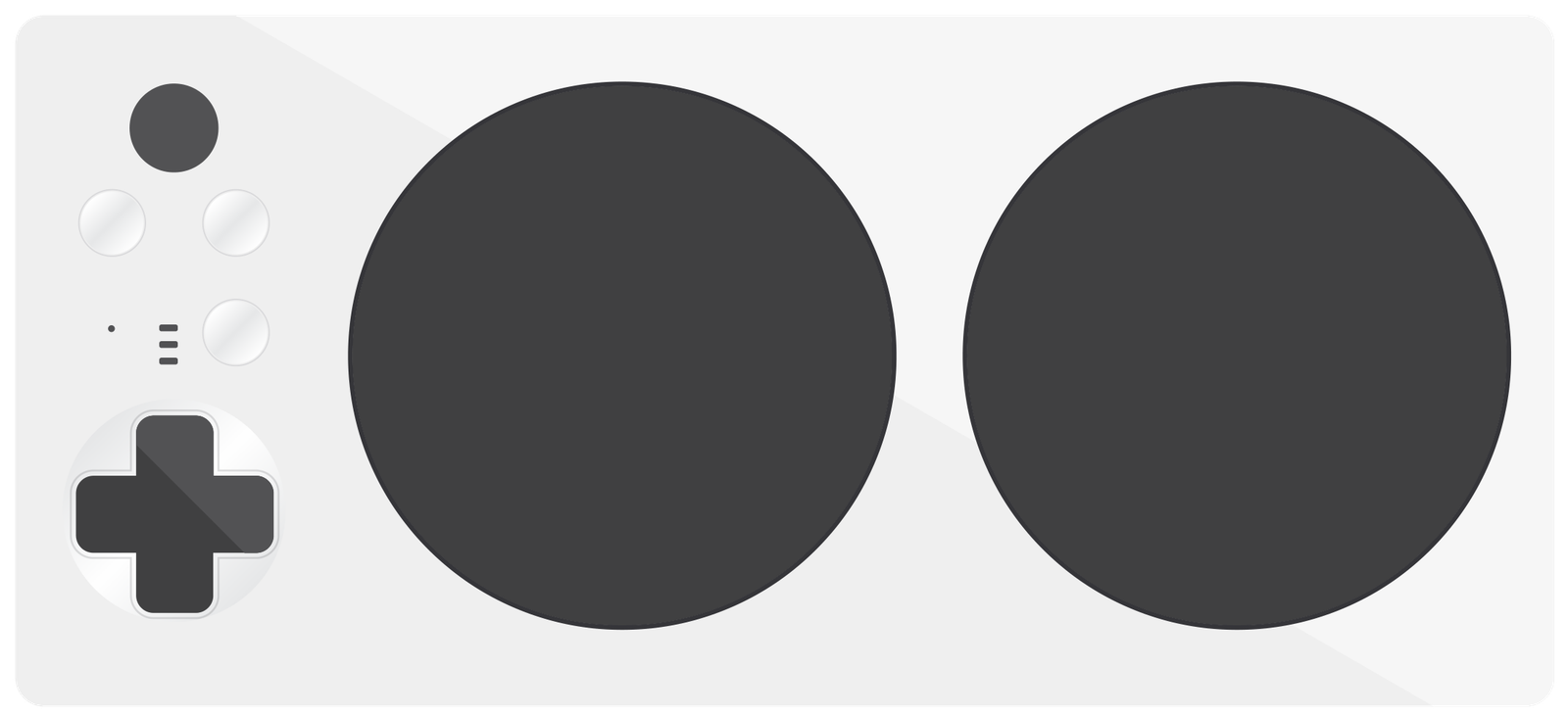
PadMouse is made for people with limited grip, reach, strength or fine motor control, people who use one hand, and anyone for whom a mouse and keyboard are tiring or painful. It works with the Xbox Adaptive Controller and the switches and buttons plugged into it.
Latch instead of hold
Press once to hold a click, a drag, ⌘ or ⇧, or precision mode. Press again to let go. No sustained grip needed.
Fewer buttons, more actions
Tap for one action and hold for another, or switch the whole controller to a second layer, so a few reachable buttons can do everything.
Steady pointing
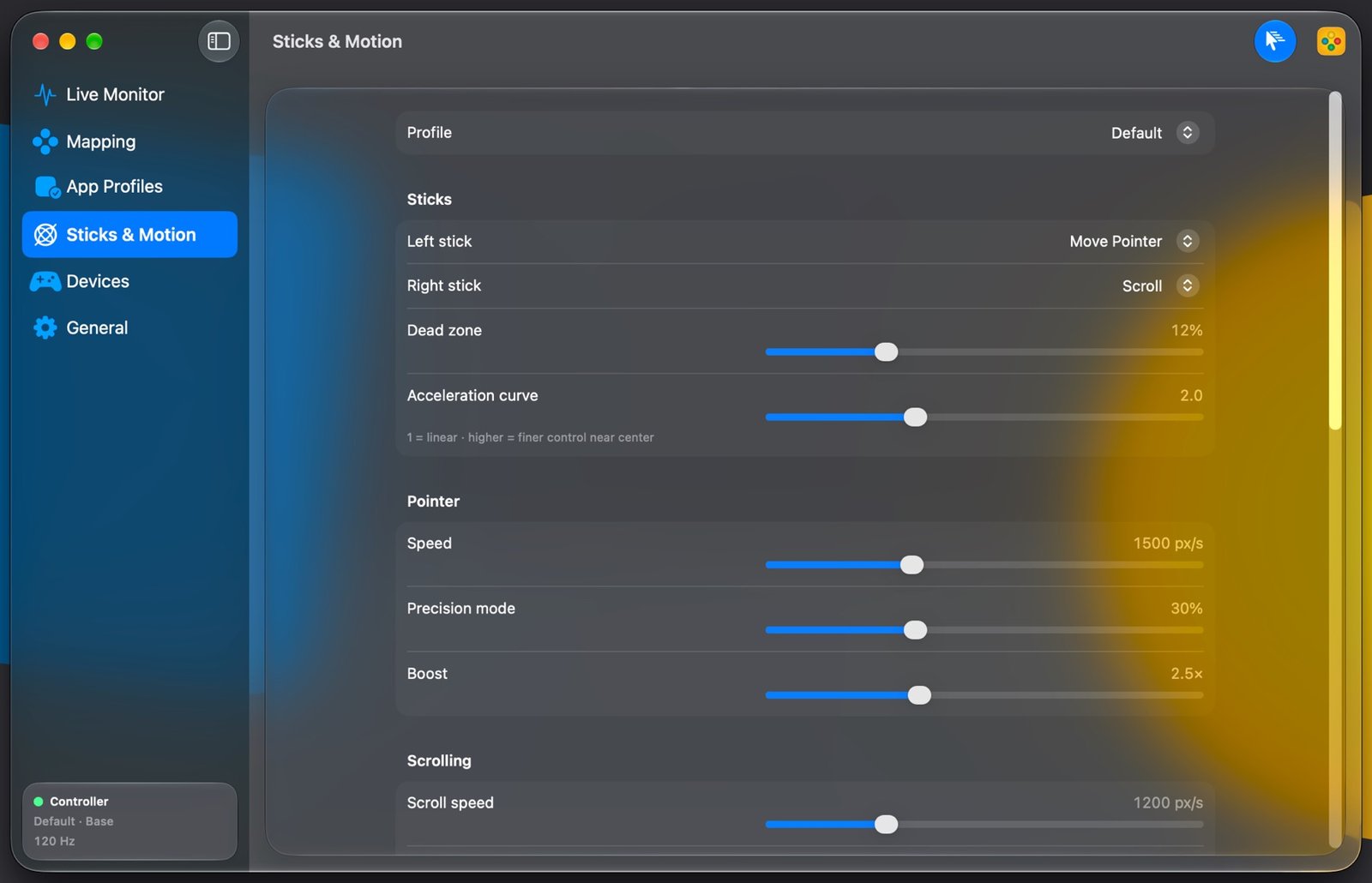
A dead zone ignores small unintended movement, an acceleration curve gives fine control, and precision mode slows the pointer further.
Point by tilting
Gyro aiming on DualSense, DualShock 4 and Switch Pro controllers when moving a stick is hard.
One press, many keys
Type a whole phrase, press a shortcut with several modifiers, or run a sequence of keys from a single button.
Set up by pressing
Choose a control by pressing it, then pick an action. No small targets to drag, no files to edit, and Preview Only lets you try a layout safely.
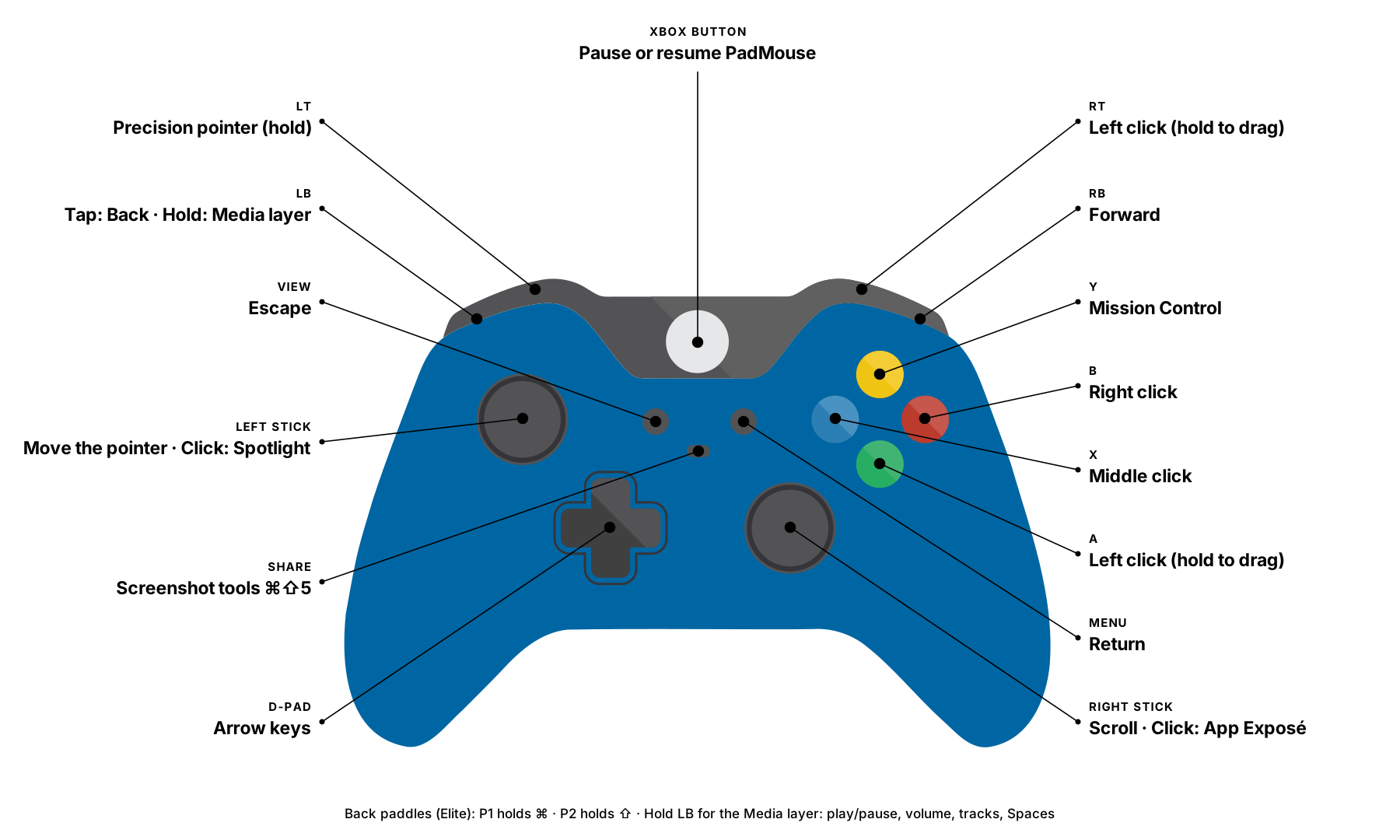
Every button already does something.
Move the pointer with the left stick, scroll with the right, click with the bottom face button. Hold the left bumper for media controls. Change any of it whenever you like.


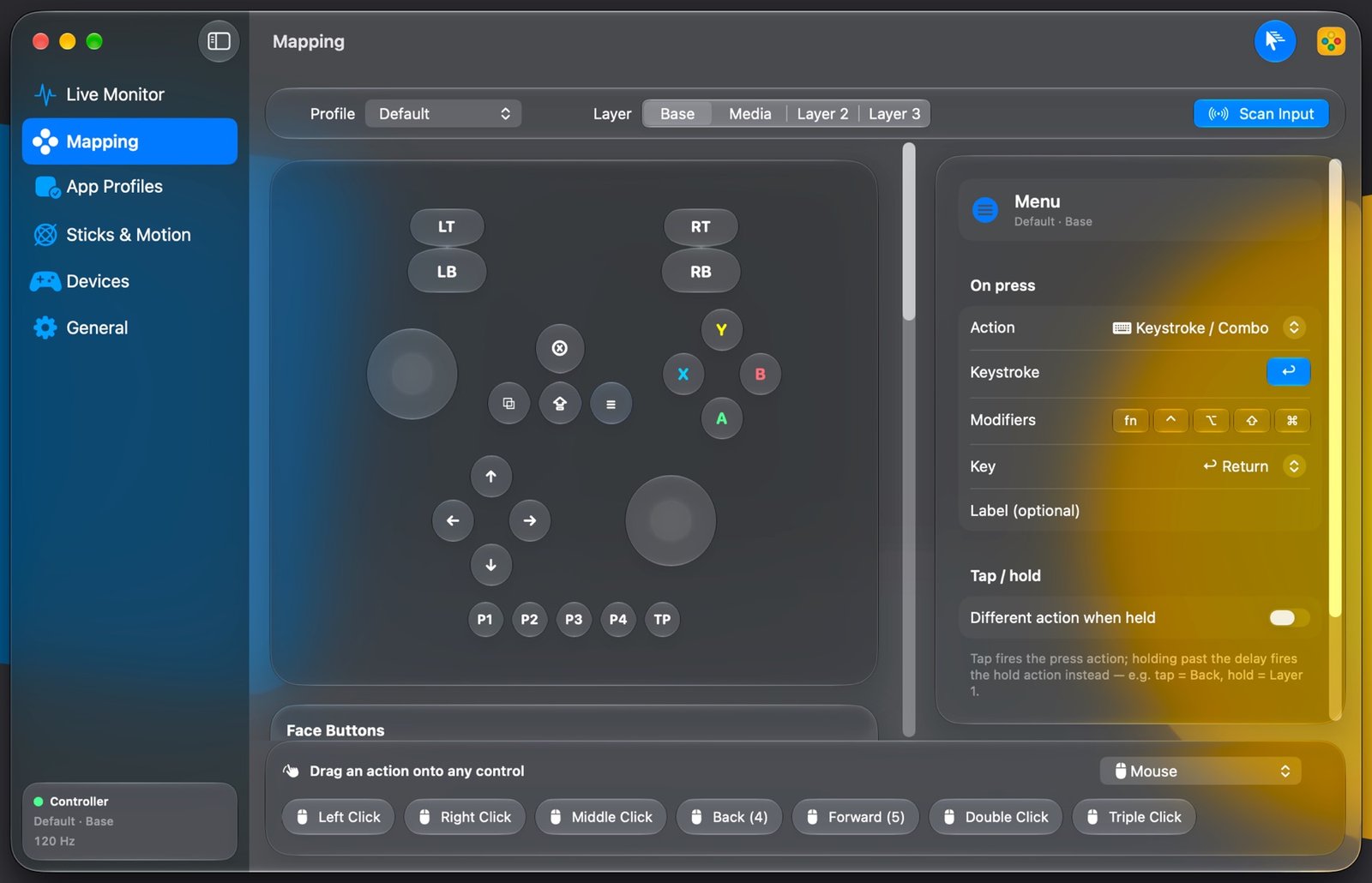
Map any button by pressing it.
Press Scan Input, then the button you want to change. Or drag an action from the palette straight onto the controller. There are no files to edit.
- Clicks, double clicks, back and forward buttons, and click lock
- Keys, shortcuts, typed text and multi-step macros
- Media keys, scrolling, Apple Shortcuts, apps, web pages and MIDI
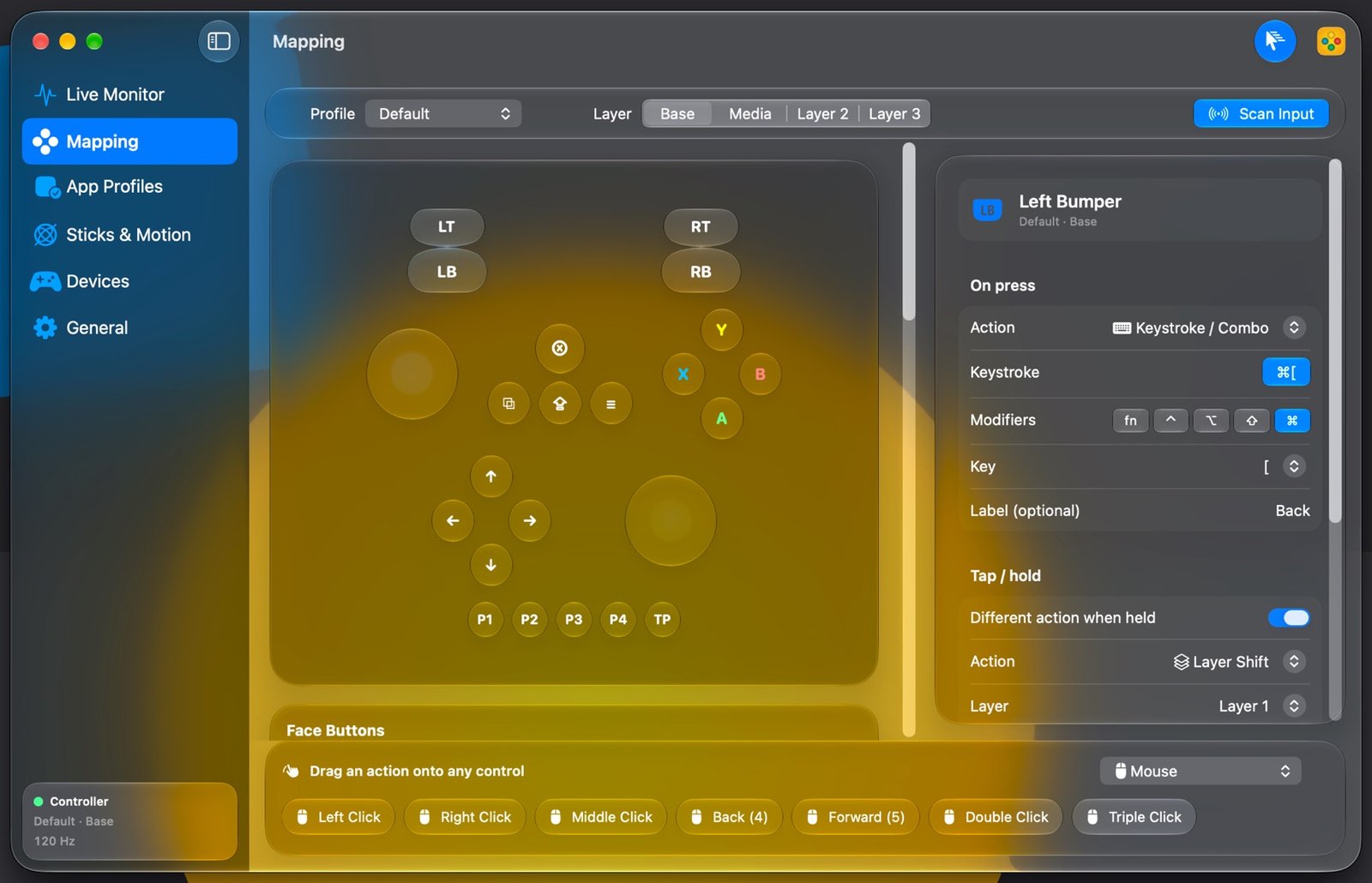
One button. More jobs.
Give a button one action on a tap and another on a hold. Hold a bumper to switch the whole controller to a second layer, or toggle a layer on and off. Each profile has four.
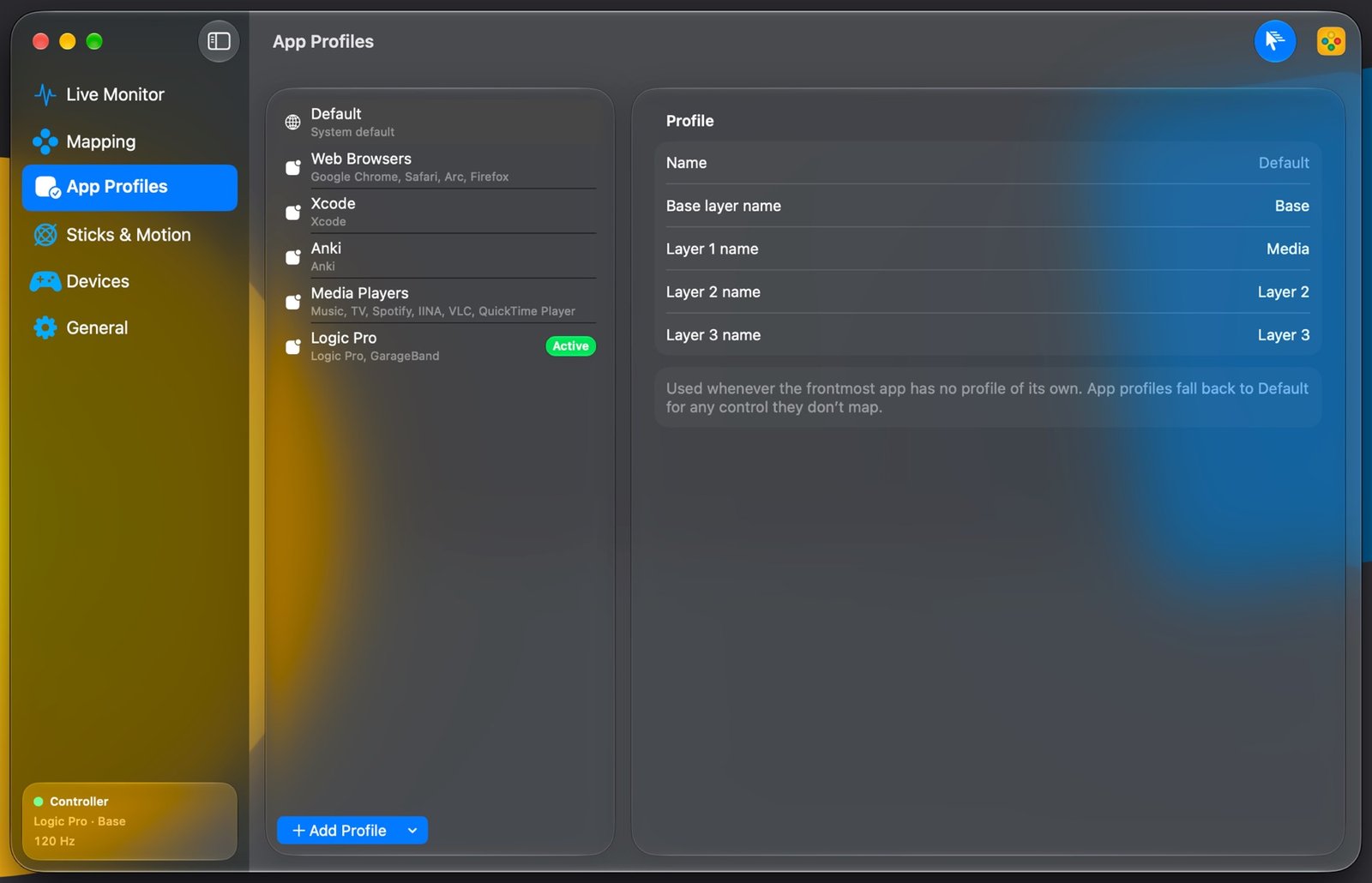
Profiles that follow your apps.
Switch to Safari and the bumpers change tabs. Open Xcode and the D-pad steps through your code. Built-in profiles cover browsers, Xcode, Anki, media players and Logic Pro, and everything else falls back to your default controls.
Tuned to your hands.
Set pointer speed, dead zone and acceleration, hold a trigger for precision or boost, and aim with the gyro on DualSense, DualShock 4 and Switch Pro controllers.
Built for real work.
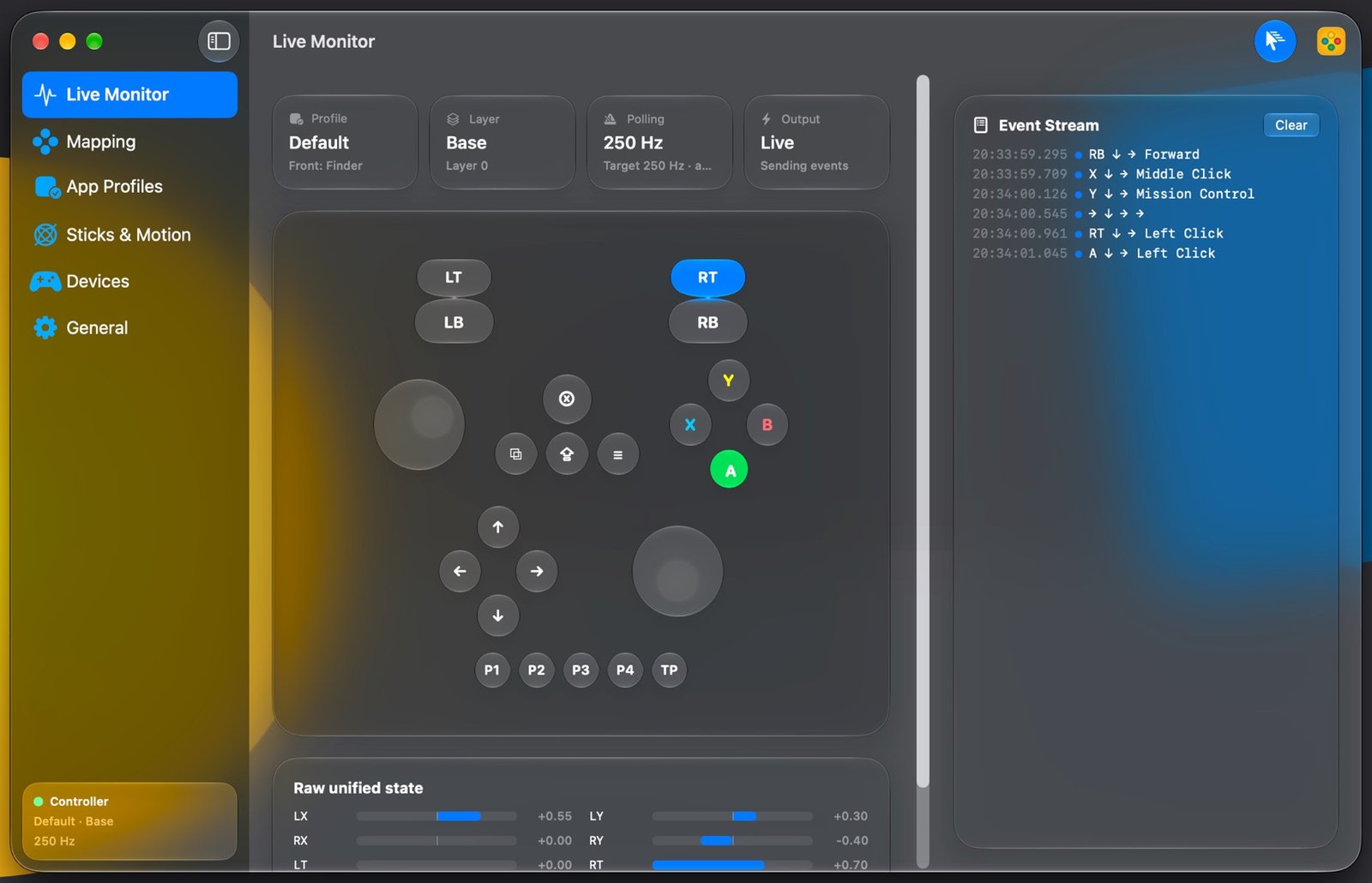
Live monitor
Watch every button light up and see the action it triggered. Preview mode logs without sending.
Music software
A virtual MIDI input called PadMouse sends notes and smooth controller data from triggers and sticks.
Feel it
Rumble confirms layer and profile changes, and PlayStation light bars change colour per layer.
Light on your Mac
Lives in the menu bar, reads the controller up to 1000 times a second only while you use it, and stops when it’s disconnected.
Private by design.
PadMouse runs entirely on your Mac. It has no account, no analytics and no network connection, and it collects nothing.