Everything PadMouse does.
How to set it up, what each button does out of the box, and how to make the controller yours.
Accessibility first
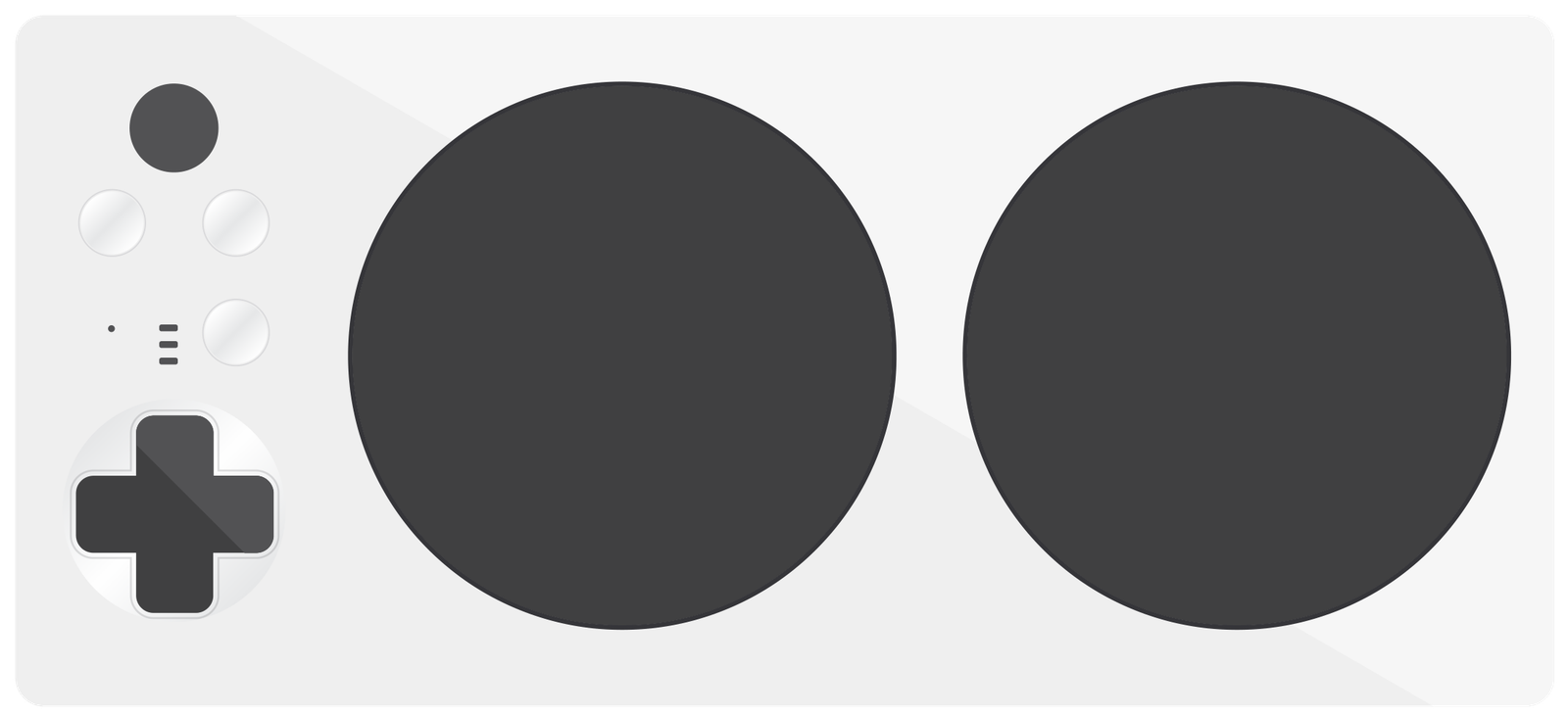
PadMouse is built for people who find a mouse hard to use: limited grip, reach, strength or fine motor control, one-handed use, or a mouse and keyboard that are tiring or painful. It works with the Xbox Adaptive Controller and the switches and buttons plugged into it.
- Latch instead of hold. Turn on Latch for any button: press once to hold a click, drag, ⌘ or ⇧, or precision mode, and press again to let go.
- Fewer buttons, more actions. Tap for one action and hold for another, or give a single button a whole second layer, so a few reachable buttons can do everything.
- Steady pointing. Raise the dead zone to ignore small unintended movement; lower the acceleration curve for finer control; use precision mode for small targets.
- Point by tilting. Gyro aiming on DualSense, DualShock 4 and Switch Pro controllers when moving a stick is hard.
- One press, many keys. Type a whole phrase, a multi-modifier shortcut, or a sequence of keys from one button.
- Set up by pressing. Press Scan Input, then the button you want to change. No small targets to drag and no files to edit.
Suggested one-handed setup: left stick moves the pointer; A clicks; set B to Left Click with Latch on for dragging; hold LB for the Media layer; set a paddle or adaptive switch to Hold ⌘ with Latch on.
Getting started
Connect your controller
Pair it in System Settings › Bluetooth, or plug it in with a USB cable. PadMouse finds it automatically.
Open PadMouse
It lives in the menu bar, with no Dock icon. Its window opens the first time; after that, click the gamepad symbol in the menu bar and choose Open PadMouse.
Allow Accessibility
macOS asks whether PadMouse may control your computer. Choose Open System Settings and switch PadMouse on under Privacy & Security › Accessibility. Without it, PadMouse can see your controller but can’t move the pointer or press keys. The General screen shows whether it’s allowed.
Try it
Move the left stick to move the pointer and press A to click. Open the Live Monitor to watch each press light up.
Make it yours
Go to Mapping, press Scan Input, press any button on the controller, and choose what it should do.
Press the Xbox, PS or Home button at any time to pause PadMouse, for example while you play a game. Press it again to resume. The controller rumbles to confirm.
Default controls
Pick your controller below to see its button names. Face buttons work by position, so the same spot does the same job on every controller: the bottom button is A on Xbox, Cross on PlayStation and B on Nintendo controllers. The table uses Xbox names.
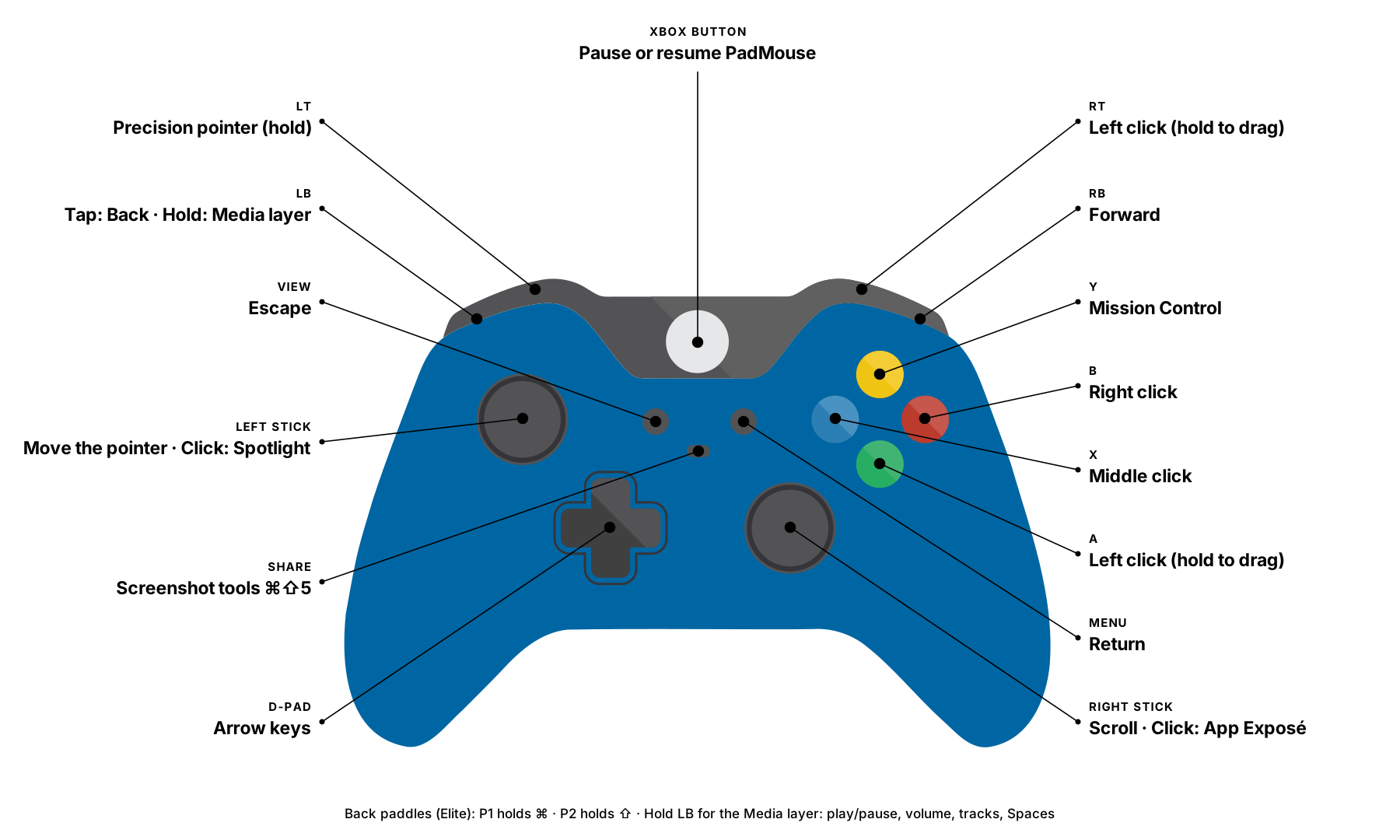


| Control | Base layer | Media layer (hold LB) |
|---|---|---|
| Left stick | Move the pointer | Move the pointer |
| Right stick | Scroll | Scroll |
| A | Left click (hold to drag) | Play / pause |
| B | Right click | Previous Space |
| X | Middle click | Mute |
| Y | Mission Control | Show Desktop |
| LB | Tap: Back ⌘[ · Hold: Media layer | — |
| RB | Forward ⌘] | Next Space |
| LT | Precision pointer while held | Precision pointer while held |
| RT | Left click (hold to drag) | App switcher |
| Left stick click | Spotlight | Spotlight |
| Right stick click | App Exposé | App Exposé |
| D-pad | Arrow keys | Up/down: volume · Left/right: previous/next track |
| Menu | Return | Return |
| View | Escape | Escape |
| Share | Screenshot tools ⌘⇧5 | Screenshot tools |
| Xbox / PS / Home | Pause or resume PadMouse | Pause or resume PadMouse |
| Paddles P1 / P2 | Hold ⌘ / hold ⇧ | Same |
In the Media layer, any button without its own action does what it does in the base layer.
Features
A real mouse
Left, right and middle click, back and forward buttons, double and triple click, and click-and-drag by holding a button.
Smooth pointer and scrolling
Analog sticks with adjustable speed, dead zone and acceleration curve. Hold for precision mode or a speed boost when you need it. Scroll in either direction, inverted if you prefer.
Keys and shortcuts
Any key or combination, held modifiers like ⌘ and ⇧, typed text in any language, and multi-step macros with pauses. Held keys repeat like a real keyboard; Turbo repeats any action while you hold the button.
Media and system controls
Play/pause, volume, mute, track skipping, screen and keyboard brightness, Mission Control, Spaces, Show Desktop and the app switcher.
Automation
Run an Apple Shortcut or open an app or a web page. To run your own AppleScript or shell script, put it in a shortcut (see Using scripts below).
Music software
PadMouse adds a virtual MIDI input called PadMouse. Buttons send notes and controller messages; triggers and sticks can send smooth controller data, for example to the mod wheel and expression.
Latch
Turn on Latch for a button and its action stays on after one press, until you press again: click lock for dragging, sticky ⌘ or ⇧, precision mode, scrolling or gyro aiming without holding anything down.
Layers and tap/hold
Each profile has a base layer and three more. Switch layers by holding or toggling a button, and give any button a different action when held.
App profiles
Profiles load when you switch to an app and return to Default everywhere else. Anything a profile doesn’t set comes from Default, so you only change what matters for that app.
Live monitor
See every button light up, watch stick and trigger values, and read a log of each input and the action it triggered. Preview Only mode logs actions without sending them.
Motion, rumble and lights
Gyro aiming on DualSense, DualShock 4 and Switch Pro controllers, rumble on layer and profile changes, and light-bar colours per layer on PlayStation controllers.
Light on your Mac
PadMouse lives in the menu bar. It reads the controller 120 times a second when idle and up to 1000 times a second while you use it, and stops completely when no controller is connected.
The PadMouse window
The sidebar has six screens. The Active button at the top right pauses or resumes all controller output.
Live Monitor
Shows the current profile and layer, how often the controller is being read, and whether PadMouse is sending input. Click any control on the picture to edit it.
Mapping
Choose the profile and layer at the top, then pick a control: click it on the picture or in the list, press Scan Input and press the button, or drag an action from the palette onto a control. The panel on the right sets the action when pressed, an optional action when held, Turbo, and Latch. Inherit uses the Default profile’s action; Disable makes the control do nothing in this profile.
App Profiles
Add a profile from a template, from an app that’s running, or by choosing any app. A profile can cover several apps. Rename layers here.
Sticks & Motion
Set each stick to move the pointer, scroll, act as four direction buttons, send MIDI or do nothing. Adjust dead zone, acceleration, speeds, triggers and gyro. Each profile can use its own settings or Default’s.
Devices
Connected controllers, how each is connected and its battery level. Set the top polling rate (120, 250, 500 or 1000 Hz) and test rumble.
General
Automatic profile switching, Preview Only, sounds, opening at login, Accessibility status, and Reset Everything.
Actions you can assign
| Action | What it does |
|---|---|
| Mouse Button | Left, right, middle, back or forward; held while the control is held |
| Multi-Click | Double or triple click |
| Keystroke / Combo | Any key with any modifiers; click the shortcut field and type it |
| Macro Sequence | Keys, text, clicks, media keys and pauses in order |
| Type Text | Types a phrase, including accents and emoji |
| Media Key | Play/pause, next, previous, volume, mute, brightness |
| Scroll | Scrolls up, down, left or right while held |
| Pointer & Control | Precision, boost, gyro aim, app switcher, rumble, pause PadMouse |
| Layer Shift | Switches layer while held, or toggles it |
| Apple Shortcut | Runs a shortcut by name through the Shortcuts app |
| Launch App | Opens or switches to an app |
| Open URL | Opens a web page or app link |
| MIDI | Sends a note or controller message from the PadMouse MIDI input |
Using scripts
To run your own AppleScript or shell script from a button, wrap it in an Apple Shortcut:
- In the Shortcuts app, create a shortcut with a Run AppleScript or Run Shell Script action and paste your script.
- In PadMouse’s Mapping screen, set the button’s action to Apple Shortcut and type the shortcut’s name.
Built-in app profiles
| Template | Apps | Highlights |
|---|---|---|
| Web Browsers | Safari, Chrome, Firefox, Arc | Bumpers change tabs, Y new tab, X close tab (hold to reopen), Menu address bar, right stick click reloads. |
| Xcode | Xcode | Menu runs, View stops, Y builds, X Open Quickly. Hold LT for a Debugger layer. |
| Anki | Anki | A shows the answer, D-pad grades Again, Hard, Good and Easy, B undoes. |
| Media Players | Music, TV, Spotify, IINA, VLC, QuickTime Player | A play/pause, bumpers change track, D-pad volume and seek, Y full screen. |
| Logic Pro / DAW | Logic Pro, GarageBand | Transport, record, cycle, navigation, metronome. Triggers send mod wheel and expression; left stick click is the sustain pedal. |
To use MIDI, choose PadMouse as a MIDI input in your music app.